Optimize and protect your Managed Hosting for WordPress site with Firewall & Performance settings
With the Premium Firewall & Performance Add-on, your Managed Hosting for WordPress site runs up to three times faster while benefiting from advanced security. This guide walks you through using the features available on the Security tab, under Firewall & Performance in your Hosting dashboard.
What's included
This add-on enhances your website by providing additional features to your WAF/CDN:
- Web Application Firewall (WAF) for proactive threat blocking (blocks traffic).
- Content Delivery Network (CDN) for faster global content delivery with image optimization.
Where to find it
- Gå till din produktsida för GoDaddy- .
- På sidan Mina produkter väljer du Hantera alla bredvid Managed Hosting for WordPress.
- For the website you want to manage the WAF/CDN settings on, select Overview from the
 menu.
menu. - Select the Security tab.
- You can change your WAF/CDN settings under Firewall & Performance.
How to use Firewall & Performance settings
Here's how to block traffic from specific sources, manage site cache and optimize content.
Block traffic
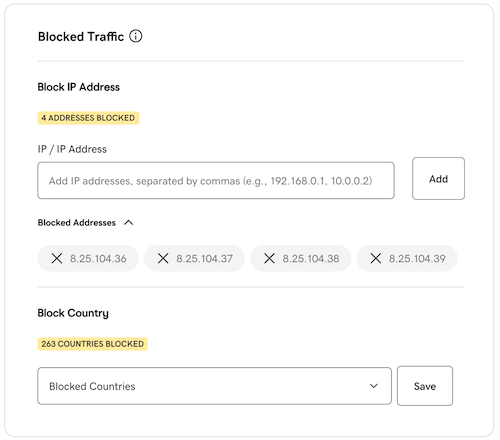
Take control of access to your site with IP and country blocking.
Block IP addressThis is helpful for blocking spam or abusive visitors.
- Add one or more IP addresses (comma-separated) to block.
- Select Add to activate the rule.
This can help reduce traffic from specific regions.
- Use the dropdown to select countries you wish to block.
- Select Save to apply changes.
Cache configuration
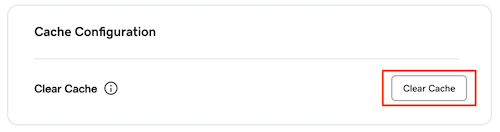
Ensure your content loads fast by managing your cache. Under Cache Configuration, select Clear Cache to force a refresh of stored site content. You should clear the cache after publishing new posts or changing the site layout.
Content optimization
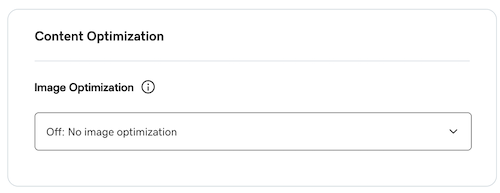
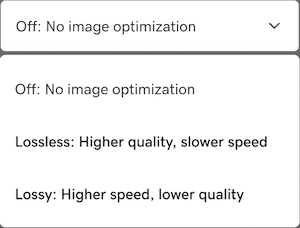
Improve speed and user experience with built-in optimization options. Under Image Optimization, choose how you want images to be optimized:
- Off: No image optimization applied.
- Lossless: Higher image quality but may result in slightly slower loading speeds.
- Lossy: Prioritizes speed by reducing image quality — ideal for performance-focused sites.
Mer information
- Block known spam IPs for cleaner traffic and reduced server load (you can find blocked IPs with third-party tools like the IP Blacklist checker from MXToolbox.com).